Description
The tedious part of subtitling was never the typing — it is the timing. Dragging each line into place on the timeline can eat an afternoon for a few minutes of footage, and the moment two or three people are talking it gets worse: working out who said which line means scrubbing back over and over. The easy way out is cloud transcription, but that is billed by the minute and means uploading your footage first.
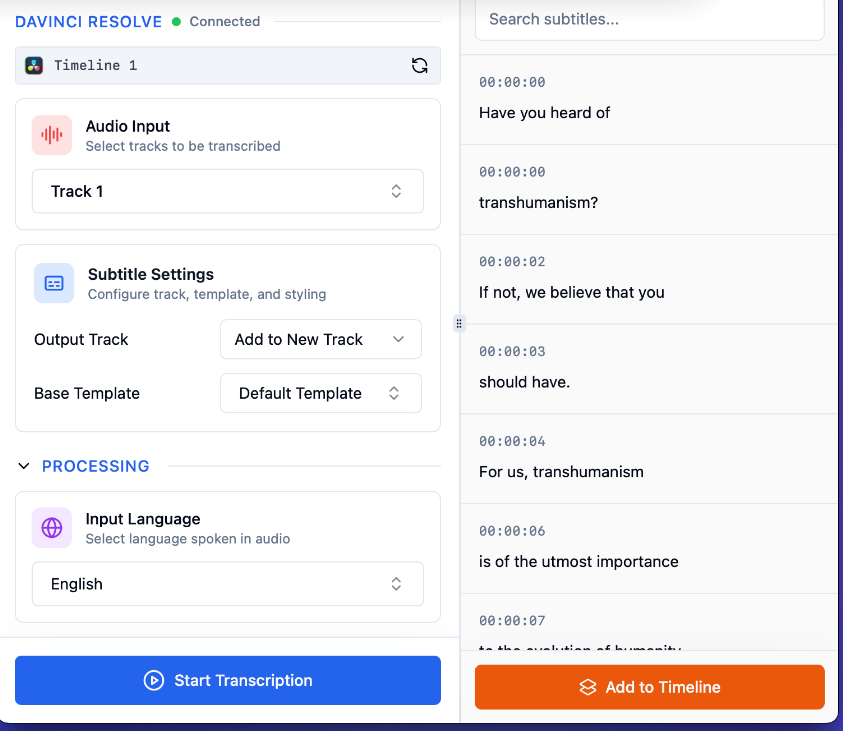
AutoSubs deals with both at once. Transcription runs on your own machine — nothing uploaded, no per-minute charge — audio goes in, subtitles come out with the timing already lined up. The part that actually saves time is speaker separation: it works out who spoke each line and tags each person with a colour, so a multi-person conversation reads clearly at a glance instead of by ear.
If you cut in DaVinci Resolve, Premiere or After Effects, it pushes the finished subtitles straight onto the timeline, skipping the export-an-SRT-then-import-it round trip. It also runs on its own if you are not using an editor at all.
On-device transcription: The models run on your computer, so footage never leaves it and there is no duration quota; several transcription models ship with it so you can trade speed against accuracy.
Speaker separation: It attributes each line to a speaker and colour-codes them, which removes most of the re-listening from interviews, podcasts and meeting notes.
Many languages: Over fifty languages are recognised, mixed-language material included, so there is no picking a language and running it again.
Straight to the timeline: Connected to DaVinci Resolve, Premiere or After Effects, it adds the subtitles to the project as a new track in one click, with no intermediate SRT file.
Built-in editor: Fix a misheard word, nudge a timing, merge or split a line right there before sending the result to your editor.
Style templates: Font, position and multi-line rules save as templates, and different speakers can carry different styles, so one setup is reused across projects.
Standalone mode: It works without any editing software installed — transcribe, export the subtitle file, done.
All three platforms: Builds for Windows, macOS and Linux, released under the MIT licence.
AutoSubs deals with both at once. Transcription runs on your own machine — nothing uploaded, no per-minute charge — audio goes in, subtitles come out with the timing already lined up. The part that actually saves time is speaker separation: it works out who spoke each line and tags each person with a colour, so a multi-person conversation reads clearly at a glance instead of by ear.
If you cut in DaVinci Resolve, Premiere or After Effects, it pushes the finished subtitles straight onto the timeline, skipping the export-an-SRT-then-import-it round trip. It also runs on its own if you are not using an editor at all.
Features
On-device transcription: The models run on your computer, so footage never leaves it and there is no duration quota; several transcription models ship with it so you can trade speed against accuracy.
Speaker separation: It attributes each line to a speaker and colour-codes them, which removes most of the re-listening from interviews, podcasts and meeting notes.
Many languages: Over fifty languages are recognised, mixed-language material included, so there is no picking a language and running it again.
Straight to the timeline: Connected to DaVinci Resolve, Premiere or After Effects, it adds the subtitles to the project as a new track in one click, with no intermediate SRT file.
Built-in editor: Fix a misheard word, nudge a timing, merge or split a line right there before sending the result to your editor.
Style templates: Font, position and multi-line rules save as templates, and different speakers can carry different styles, so one setup is reused across projects.
Standalone mode: It works without any editing software installed — transcribe, export the subtitle file, done.
All three platforms: Builds for Windows, macOS and Linux, released under the MIT licence.